Hi,
In this tutorial, I will show you how to apply a fusion/fade effect between two images with photoshop.
This is the result you will get at the end of this tutorial:

These are the images we are going to use in this tutorial:
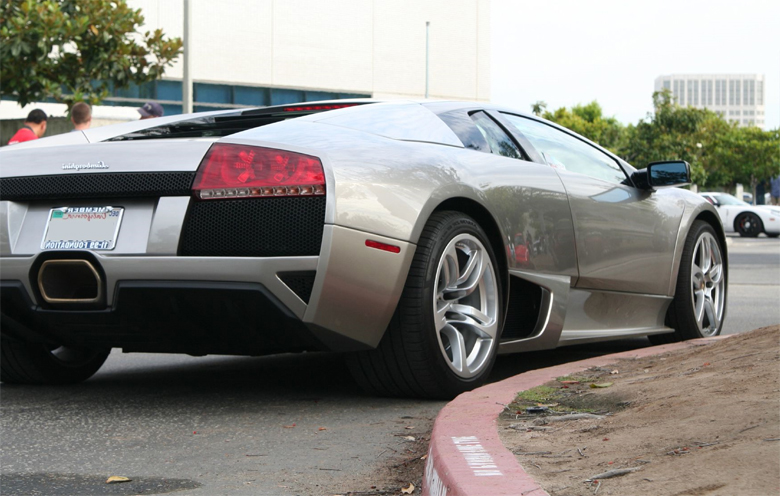

First create a 780px * 496px photoshop document.
Copy the images in two different layers.
Add a Layer Mask on the first image.
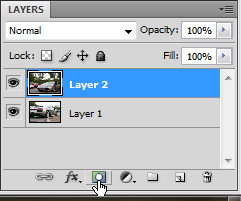
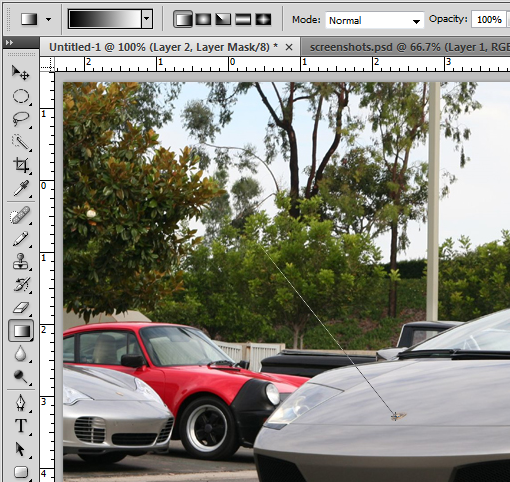
Using the Gradient Tool (G) trace a gradient from black to white like in this image:
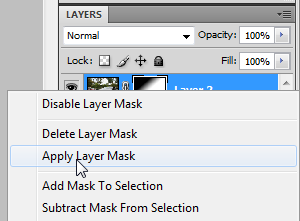
Now you can apply the mask by doing a right click on the mask and clicking on Apply Layer Mask:
That's it, you should get something similar to:
Thank you and I hope this tutorial will be useful.
Similar Scripts and Tutorials

![[Tutorial]Fusion between 2 images with layers masks (Photoshop)](http://www.webestools.com/ftp/ybouane/scripts_tutorials/photoshop/merge_images/img_preview.png) The 13/07/2011 at 23:27:00
The 13/07/2011 at 23:27:00![[Tutorial] Perspective with a reflect and a Shadow in Photoshop](http://www.webestools.com/ftp/ybouane/scripts_tutorials/photoshop/perspective_reflect/img_preview.png) [Tutorial] Perspective with a reflect and a Shadow in Photoshop
[Tutorial] Perspective with a reflect and a Shadow in Photoshop
![[Tutorial] Black and White image in Photoshop from a colored image](http://www.webestools.com/ftp/ybouane/scripts_tutorials/photoshop/black_and_white/img_preview.png) [Tutorial] Black and White image in Photoshop from a colored image
[Tutorial] Black and White image in Photoshop from a colored image
![[Tutorial] Create, Export and Import Brushes on Photoshop](http://www.webestools.com/ftp/ybouane/scripts_tutorials/photoshop/brushes/img_preview.png) [Tutorial] Create, Export and Import Brushes on Photoshop
[Tutorial] Create, Export and Import Brushes on Photoshop
![[Tutorial] Reproduce Google's Logo in Photoshop](http://www.webestools.com/ftp/ybouane/scripts_tutorials/photoshop/logo_google/img_preview.png) [Tutorial] Reproduce Google's Logo in Photoshop
[Tutorial] Reproduce Google's Logo in Photoshop
![[Tutorial] Reproduce the Photoshop CS4 Logo](http://www.webestools.com/ftp/ybouane/scripts_tutorials/photoshop/logo_photoshop/img_preview.png) [Tutorial] Reproduce the Photoshop CS4 Logo
[Tutorial] Reproduce the Photoshop CS4 Logo