Hi,
In this tutorial I will show you how to make web 2.0 Logos and Titles with Photoshop. At the end of this tutorial, you will be able to do that:

Web 2.0 Title made from this tutorial
First of all, open Photoshop and create a 500x100 image with a white background. Take the Text (T) tool and type your text. I chose the Font "Arial Rounded MT Bold". Choose a color for your title.
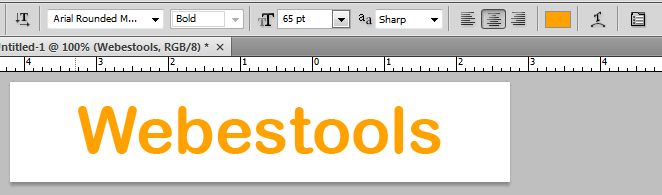
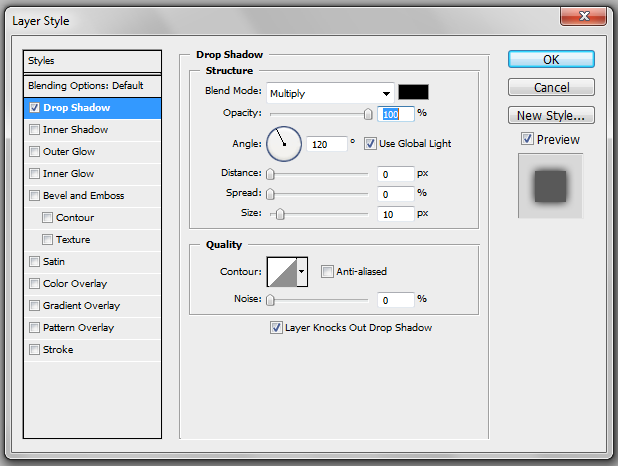
Double clic on the text layer to open it Blending Options. Thick the Drop Shadow menu and use these parameters:
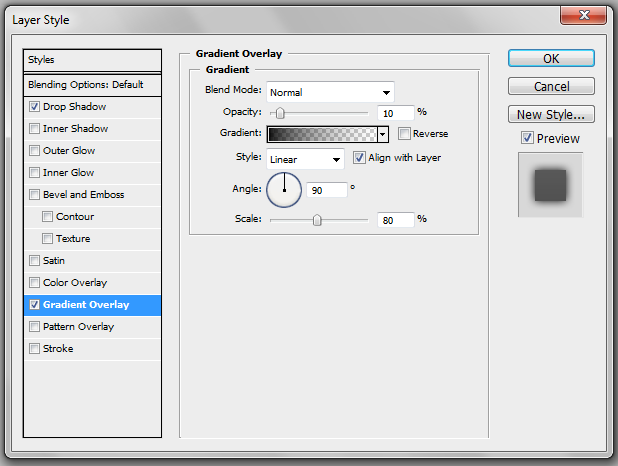
Thick the Gradient Overlay menu and use these parameters.
Thick the Stroke menu, use these parameters and clic on Ok.

Create a new layer, choose the Elliptical Marquee Tool (M) and draw an ellipse like this one:

Fill it with white using the Paint Bucket Tool (G):

Stay on the layer of the ellipse and mantaining the Ctrl key of your keyboard clic on the layer of your text(the small Thumbnail). Your text is now selected. Using the Rectangle Marquee Tool, do a right clic on your selection and choose Select Inverse. Clic on the Delete key of your keyboard and lower the opacity of the ellipse layer to 50%.

You should get something similar to:

You can read the
reflect tutorial to improve your web 2.0 logo.

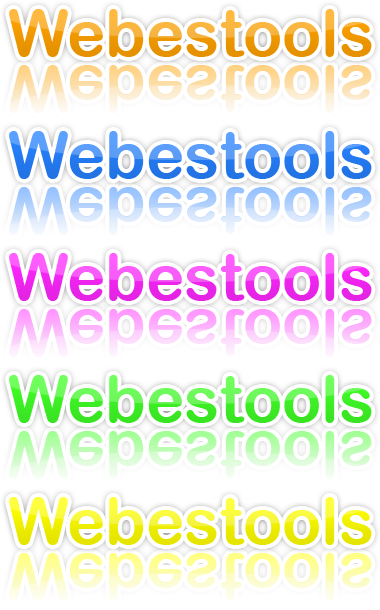
You can easily change the color of your title:
Thank you for reading and I hope this tutorial will be useful.
Similar Scripts and Tutorials

![[Tutorial]Create a web 2.0 Logo with photoshop (Web 2.0 Title)](http://www.webestools.com/ftp/ybouane/scripts_tutorials/photoshop/web20_title_logo/img_preview.png) The 11/07/2011 at 19:04:41
The 11/07/2011 at 19:04:41![[Tutorial]Create a web 2.0 button with photoshop](http://www.webestools.com/ftp/ybouane/scripts_tutorials/photoshop/web20_buttons/img_preview.png) [Tutorial]Create a web 2.0 button with photoshop
[Tutorial]Create a web 2.0 button with photoshop
![[Tutorial]Make an Apple Bar with photoshop](http://www.webestools.com/ftp/ybouane/scripts_tutorials/photoshop/apple_bar/img_preview.png) [Tutorial]Make an Apple Bar with photoshop
[Tutorial]Make an Apple Bar with photoshop
![[Tutorial]Border on an image with GIMP](http://www.webestools.com/ftp/ybouane/scripts_tutorials/gimp/border/img_preview.png) [Tutorial]Border on an image with GIMP
[Tutorial]Border on an image with GIMP
 Simple PHP Forum Script - php forum easy simple script code download free php forum mysql
![[Tutorial] Reproduce Google's Logo in Photoshop](http://www.webestools.com/ftp/ybouane/scripts_tutorials/photoshop/logo_google/img_preview.png) [Tutorial] Reproduce Google's Logo in Photoshop
[Tutorial] Reproduce Google's Logo in Photoshop